Calcul du spectre et logique des couleurs des cartes thermiques (Heatmaps)
La légende de la carte thermique est un outil puissant qui vous aide à visualiser et à analyser la performance du marché grâce à des plages de valeurs calculées automatiquement et à leurs couleurs correspondantes. Dans ce guide, vous apprendrez comment les plages sont définies et comment interagir avec la légende pour personnaliser votre affichage.
Calcul des plages
Lorsque la carte thermique se charge ou que les paramètres d'affichage changent, le système automatiquement :
- Détermine le type de légende le plus approprié
- Détecte les valeurs minimales et maximales de la métrique sélectionnée
- Divise cet intervalle en un ensemble de plages de valeurs (segments)
Chaque plage se voit attribuer une couleur spécifique.
Chaque tuile de la carte thermique est ensuite colorée en fonction de la plage dans laquelle se situe sa valeur.
La légende et la carte sont directement liées — chaque segment de la légende reflète une plage de valeurs spécifique, vous aidant à lire les niveaux de performance en un coup d'œil. Les plages se recalculent dynamiquement lorsque vous changez de métrique ou de filtre, garantissant que la visualisation reste toujours pertinente.
Utiliser les plages dans la légende
La légende vous permet de contrôler quelles plages de valeurs sont affichées sur la carte thermique :
- Tous les segments sont visibles par défaut
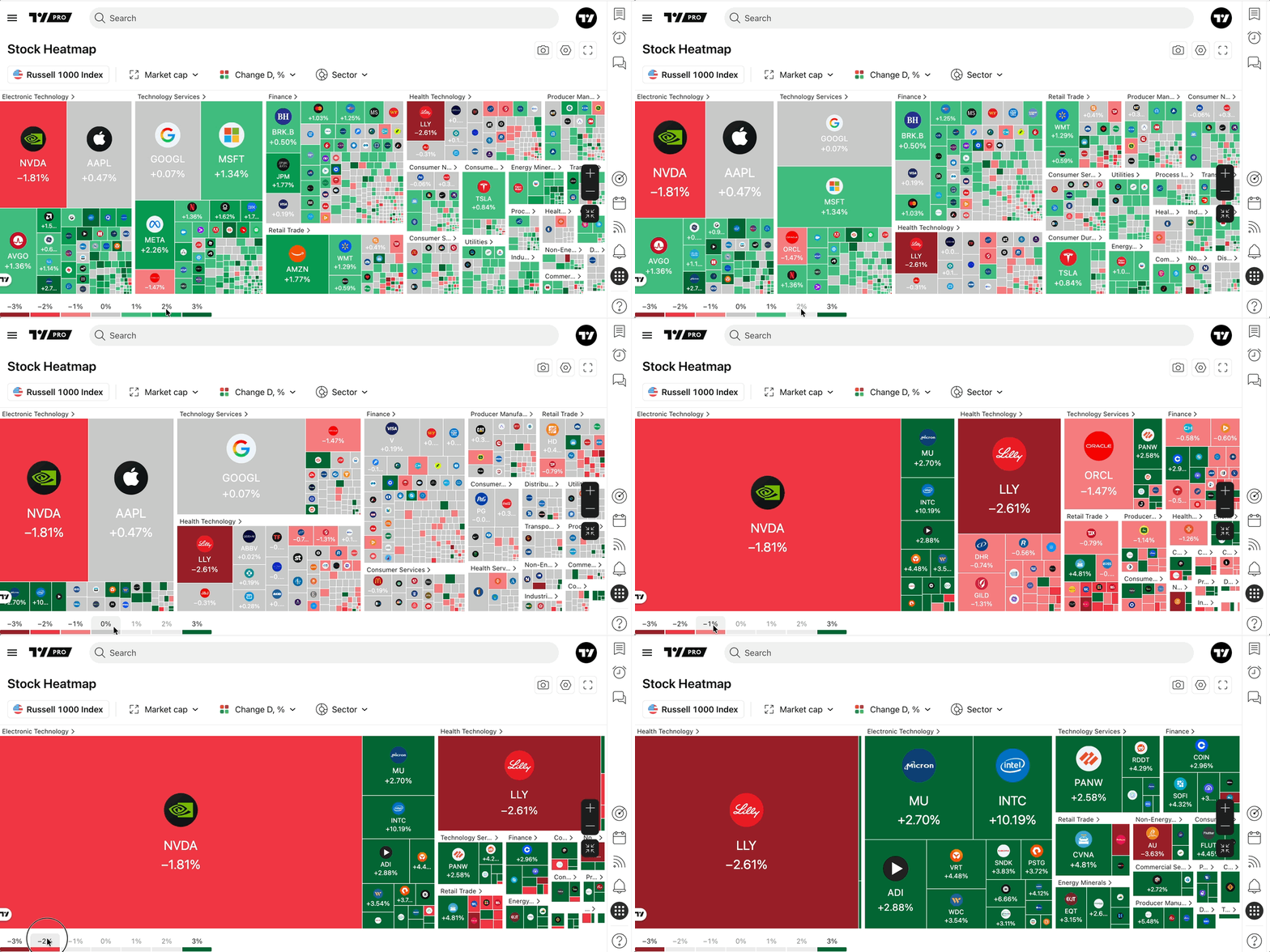
- Cliquez sur n'importe quel segment de la légende pour masquer toutes les tuiles dont les valeurs se situent dans cette plage
- Vous pouvez masquer plusieurs segments ou ne laisser que quelques segments sélectionnés visibles
Cette interaction vous aide à vous concentrer sur des zones particulières de performance du marché, à mettre en évidence les extrêmes ou à réduire le bruit visuel pour une analyse plus claire.
Exemple :
Si vous souhaitez afficher uniquement les plages +3 et −3, cliquez simplement sur les cinq segments intermédiaires (−2 à +2) pour les masquer.
À lire également :